
Create the block
In a workout or the new-workout editor, open an exercise’s … → Timed block menu. Choose EMOM, AMRAP or For time, then select its exercises and duration or intervals.
Selected exercises appear together under a coloured header, with labels such as A1 and A2. Set the reps and weights in the normal exercise tables.
EMOM
Every minute, on the minute: complete the prescribed work and rest for the remainder of the interval. The block timer starts with a five-second countdown and sounds at the interval boundaries.
One exercise per minute alternates the exercises across minutes. All exercises per minute means one round of all the listed exercises each minute. Sets per exercise determines how many times you repeat.
When the timer ends, use the completion control below the block to record the sets you finished.
AMRAP
Complete as many full rounds of the prescribed work as you can before the timer ends. You do not need to tap after every round.
At the end, use the completion control and enter the full rounds you completed and choose the overall RPE. Keep count while training.
For time
Complete the prescribed work and record how long it took. Start the timer, then use End when finished. The completion control can tick the block’s sets; only mark the work you actually completed.
Review the result
Timed-block results stay with their exercise group in workout details, history and shared workout posts. Depending on the block, they show time, rounds and relevant volume, rather than a separate list of metrics above the exercises.
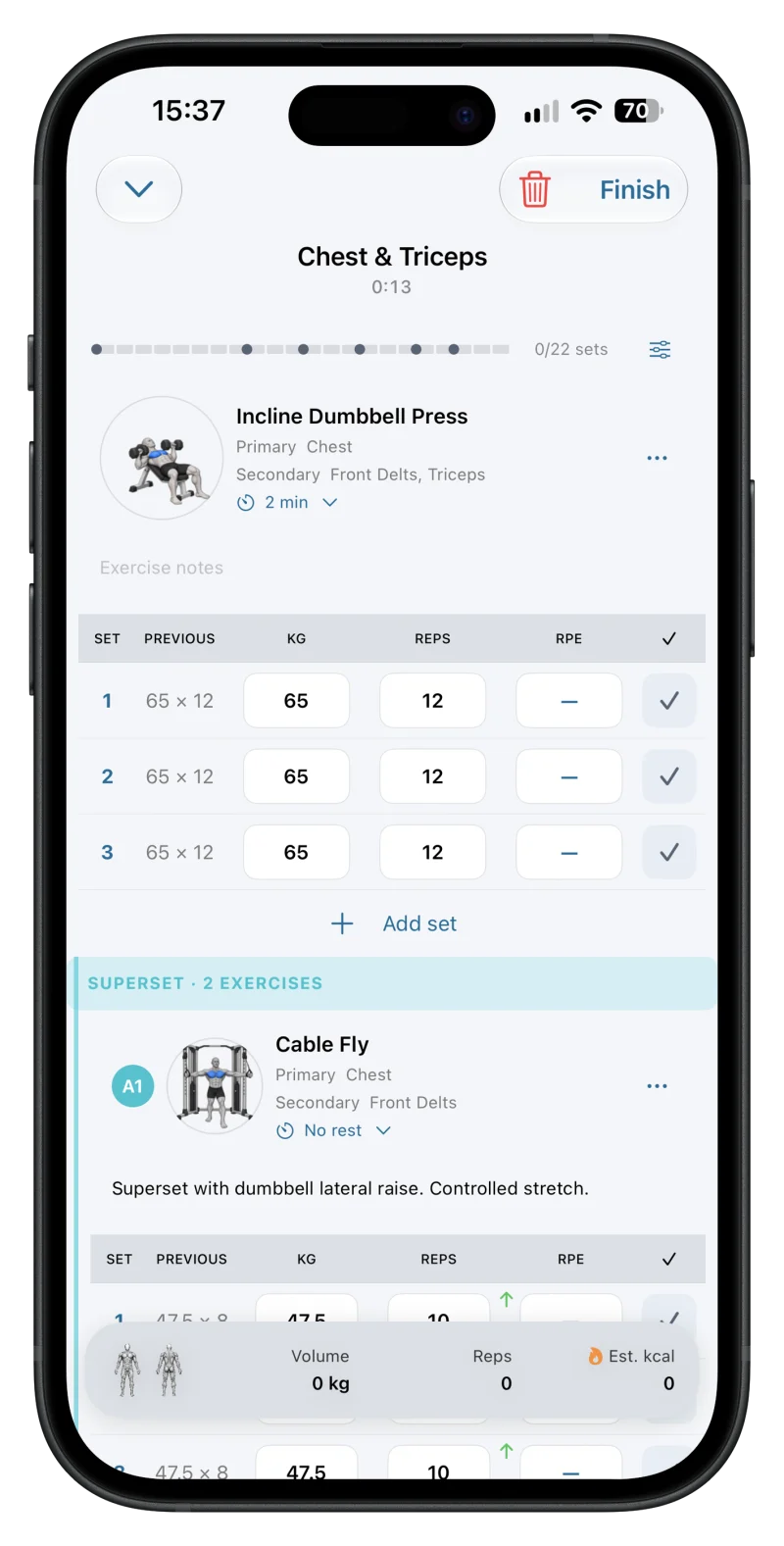
Use the appropriate workout structure for the session you are recording.
View full-size screenshot ↗Need a hand? Contact admin@gorivo.co.uk.